Supercut Review 2026: The AI Screen Recorder That Kills Live Meetings?
Live video calls are the default communication model for remote companies, but they are also major productivity killers. Employees spend hours sitting through status updates and bug reports that could have been communicated in a fraction of the time. While basic screen recording tools like Loom introduced asynchronous video messaging, they often result in rough, unpolished clips filled with “ums,” long silent pauses, and confusing layouts that viewers struggle to digest.
Supercut (supercut.ai / supercut.video) is a premium, AI-native video messaging platform designed specifically to bridge this gap. By combining native desktop recording capabilities with automated editing systems and searchable interactive transcripts, Supercut aims to make asynchronous video communication as polished as a pre-recorded presentation. In this in-depth review, we evaluate Supercut’s recording performance, test its automated AI editing capabilities, examine its collaborative workspaces, and analyze its pricing structure to determine if it is the ultimate video tool for modern teams.
Quick verdict
A stellar upgrade to standard screen recorders. The combination of native 4K capture and automated AI editing makes asynchronous updates feel incredibly polished.
Product managers, engineers, customer success reps, and remote teams looking to replace meetings with professional video updates.
Paid plans start at $15/month (billed annually) or $18/month (billed monthly) per user seat.
1. Introduction to Supercut
Supercut is built to help professionals communicate without scheduling live video calls. The platform focuses on high-quality screen captures combined with intelligent AI processing. Instead of uploading raw screen videos, Supercut routes the recording through an automated post-production pipeline that handles the boring parts of video editing.
When you finish recording, the platform doesn’t just host the video file. It automatically transcribes the audio, generates a title and bulleted summaries, identifies key topics to create chapters, and cuts out awkward gaps in the audio track. The result is a clean, searchable video record that team members can consume in a fraction of the time a live meeting would take.
2. Founders and Company Pedigree
Supercut was co-founded by Neil Kinnish and David Okuniev. If David Okuniev’s name sounds familiar, it is because he is the co-founder of Typeform, the highly successful SaaS form-building platform that pioneered beautiful, interactive UI/UX designs and revolutionized the online questionnaire market. David and Neil previously worked together at Typeform on experimental software products aimed at humanizing digital business interactions and making async workflows more conversational.
This background is directly reflected in Supercut’s design. The platform is not just a simple utility recorder; it has the same emphasis on polished styling, fluid transitions, and premium aesthetics that made Typeform a global standard in web applications. Frustrated by the “quick but clunky” nature of existing screen recorders and the steep learning curve of professional editing suites, the founders designed Supercut to bring studio-level aesthetics to everyday team communications. By establishing Supercut as an independent team, they were able to focus entirely on building high-performance native desktop capture systems and next-generation cloud rendering pipelines.
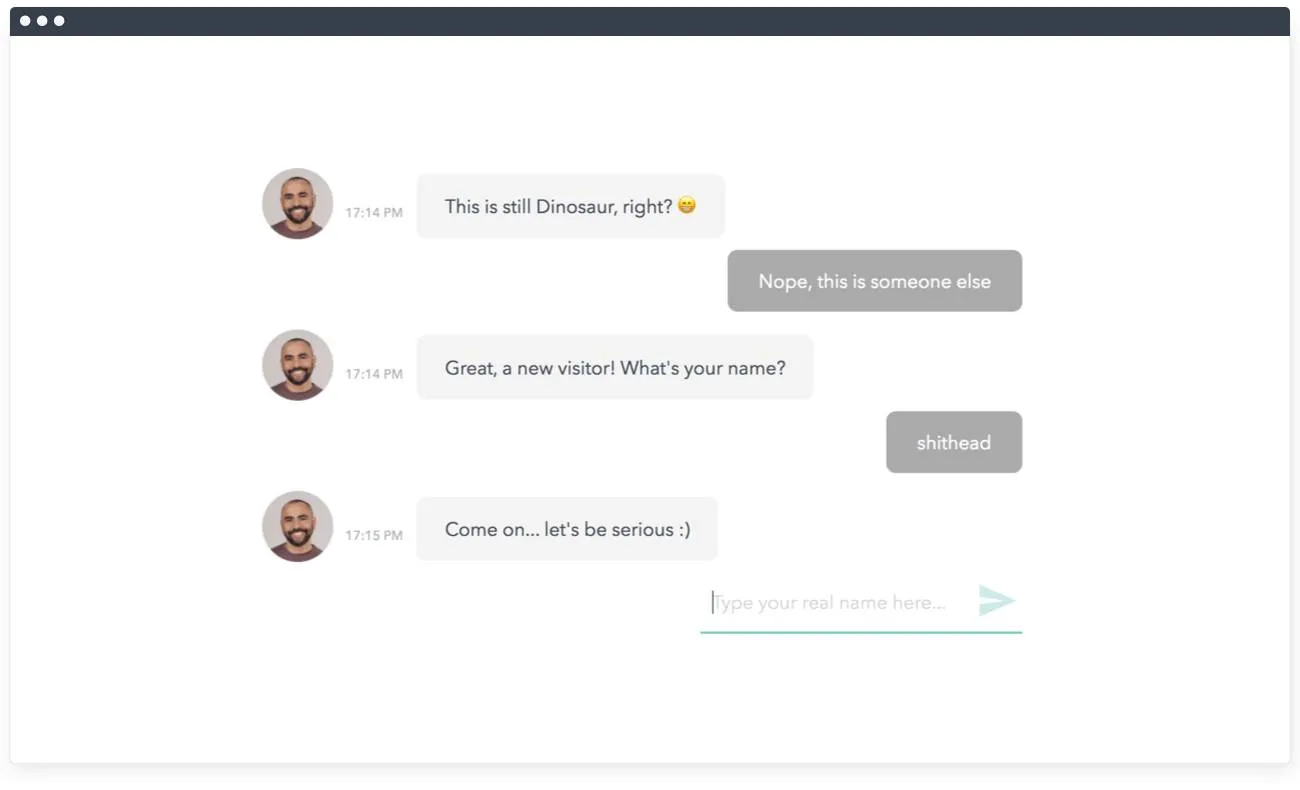
Design Roots: Gaining UI inspiration from the conversational layout structure of Typeform.
3. Native Screen Recording vs. Browser Extensions
Many standard screen recorders operate as simple Google Chrome extensions. While this makes them easy to launch, browser-based recording tools frequently suffer from lag, audio-to-video sync issues, and frame rate drops during CPU-intensive tasks (such as compiling code or running heavy graphics software).
Supercut bypasses these limitations by utilizing a native desktop client for macOS and Windows:
- High Performance: Recording directly from the operating system minimizes CPU overhead, ensuring that your computer runs smoothly even while capturing 4K video at 60 FPS.
- Flexible Inputs: The native recorder makes it easy to select multiple windows, crop specific screen segments, configure external audio interfaces, and overlay your webcam feed smoothly.
- Offline Support: You can record presentations even without an active internet connection. The app caches the files locally and handles the upload process once a connection is established.
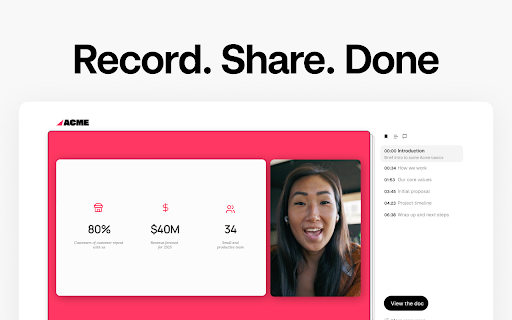
Supercut Recorder: Configurable desktop widget for screen and camera capture layouts.
4. AI-Powered Automated Video Editing
The defining feature of Supercut is its automated AI-driven post-production engine. Traditional video editing requires dedicated software, manual slicing, and complex timeline configurations. Supercut automates this entire workflow:
- Filler Word Removal: The AI scans the audio track to detect and silence filler words (like “um,” “ah,” “so,” and “like”) without causing visual jumps in the video. The system utilizes a “smart transition” render that smooths out cuts, preventing the presenter from blinking or shifting positions abruptly.
- Silence Cutting: Gaps in speech where the presenter pauses to locate a document, wait for a page to load, or check their notes are trimmed. The AI distinguishes between natural storytelling pauses and dead silences, compressing the video down to the active content.
- Auto-Director Layout Adjustments: Layout adjustments allow you to manually configure webcam bubble size during presentations. This dynamic adjustment keeps the focus on the presenter’s face during key statements, making the video feel like it was edited by a human.
5. Instant Chaptering, Titles, and Summaries
When sharing a video update, you cannot expect busy team members to sit through a full 15-minute recording just to locate a single detail. Supercut handles this by parsing the audio transcript to organize the presentation structure:
- Automated Chapters: The AI divides the video into distinct chapters based on the topics discussed, placing indicators along the timeline so viewers can skip straight to relevant sections. Each chapter is named automatically based on the context of the speech.
- Smart Titles: Generates multiple title suggestions based on the context of the recording, making the video catalog easy to search. The AI presents these options to the creator, who can select the most engaging one with a click.
- Bulleted Summaries: Produces a concise, bulleted text summary of the video content, which is posted below the player so team members can scan the details instantly. The summary extracts key action items, due dates, and assigns them to mentioned team members, serving as a text backup for the video message.
6. High-Quality Transcriptions and Search
Every video uploaded to Supercut is transcribed with high accuracy, supporting multiple languages:
- Searchable Transcript: Viewers can read the text transcript alongside the video player. Clicking on any sentence jumps the video directly to that timestamp.
- Semantic Search: You can search your team’s entire video library to find specific mentions. For example, typing “API authorization issue” scans all past recordings and lists the exact frames where that topic was discussed.
- AI Chat Assistant: Users can query the video transcript directly. For example, asking the AI, “What steps did the engineer take to reproduce the bug?” generates a structured summary without needing to watch the video.
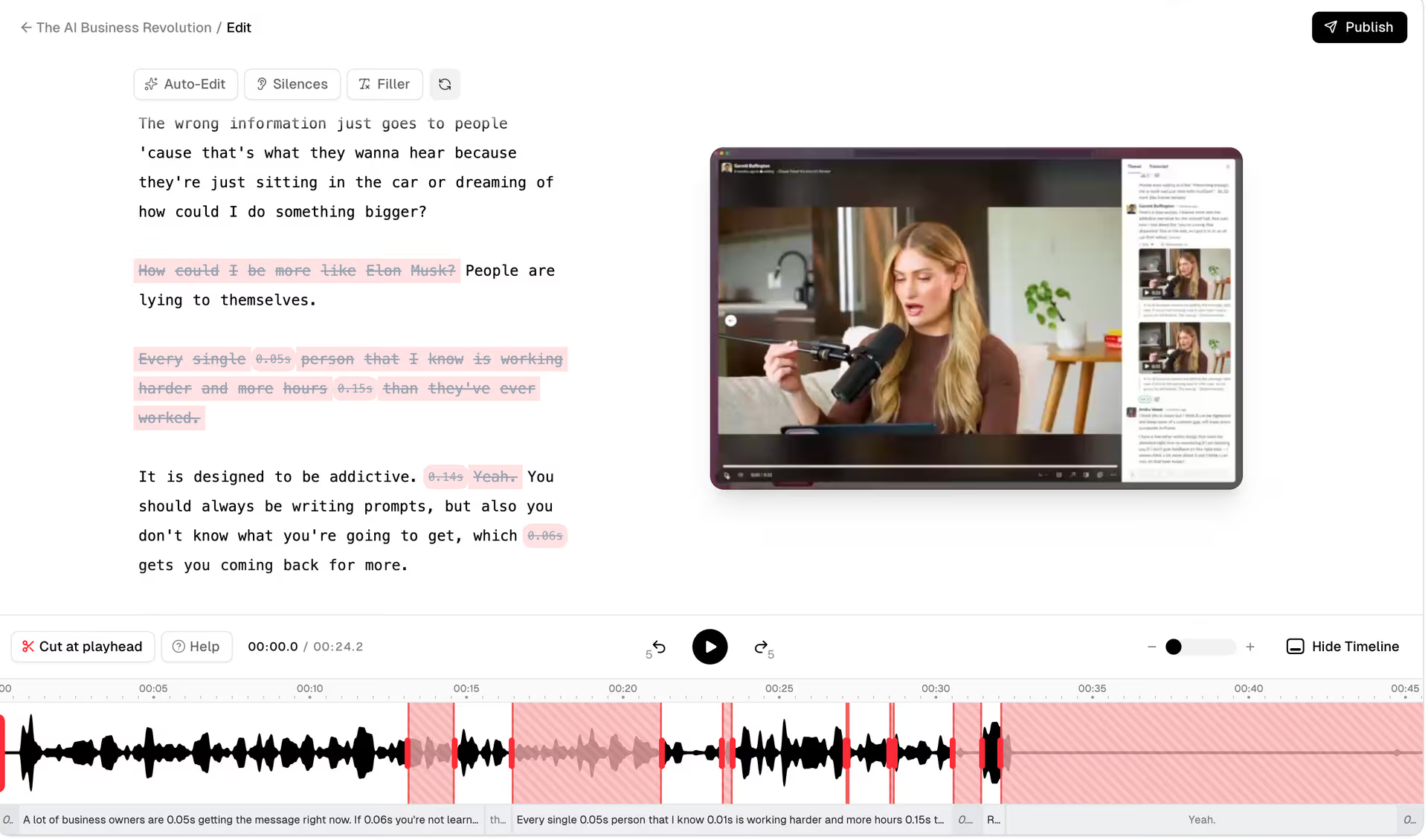
Interactive Editor: Trimming recordings and navigating timestamps directly through the transcript.
7. Professional Video Branding and Layout Customization
For customer-facing teams, the visual aesthetics of shared videos are critical to maintaining a professional image:
- Custom Player Branding: Supercut allows you to customize the video player with your company’s logo, brand colors, custom font selections, and white-labeled links, removing all Supercut branding from public video pages.
- Virtual Camera & Background Removal: The native recorder features built-in background removal, placing your camera portrait inside a clean circle, oval, or square layout overlay. It also supports virtual backgrounds and blur effects natively to create a polished appearance without a green screen.
- Interactive Call-to-Actions (CTAs): You can place interactive buttons at the end of your video (e.g., “Schedule a Demo,” “Open Github PR,” or “Download Brief”), guiding viewers directly to next steps without them needing to search external links. These CTAs track click-through rates, helping sales and support teams monitor engagement.
8. Team Collaboration and Shared Workspaces
Supercut serves as a collaborative database for company knowledge:
- Shared Spaces: Teams can organize recordings into public or private folders based on departments (e.g., Engineering, Marketing, Sales). This makes it easy to catalog onboarding guides, project status updates, and bug reports in one central library.
- Time-Stamped Comments: Team members can leave feedback and ask questions linked to specific timestamps. Clicking a comment jumps the video directly to that frame, facilitating detailed conversations and design feedback.
- Analytics Tracking: Provides detailed data on who has viewed the video, how long they watched, and where they dropped off. Presenters can view engagement graphs to optimize the quality and length of future video updates.
9. Cost and Subscription Analysis
Supercut offers a clear, tiered pricing structure built to scale with team sizes:
- Free Trial: Access to all Pro features with no credit card requirement to start.
- Pro Plan ($15/mo per seat, billed annually): Includes unlimited recording length, 4K resolution exports, AI editing tools, transcripts, and custom branding templates. If billed monthly, the price is $18/mo.
- Enterprise Plan (Custom): Adds SSO authentication (SAML), custom data retention rules, dedicated success managers, and API logs.
Compared to legacy tools, Supercut’s inclusion of AI editing tools at its entry price point makes it an excellent value for small-to-medium teams.
10. Loom vs. Supercut: Head-to-Head Comparison
How does Supercut compare to the industry standard?
Workflow Alternatives: Comparing Supercut features with popular screen recording tools like Loom.
| Feature | Supercut | Loom |
|---|---|---|
| Recording Performance | Native macOS & Windows app (Very smooth) | Browser extension or desktop client |
| Filler Word / Gap Cut | Automated AI silence & word trim | Manual trims (Basic automated cuts on high-tier) |
| Searchability | Semantic search across entire team library | Simple title & keyword search |
| UI Aesthetics | Modern design with customizable player branding | Standard Loom-branded player |
| Transcription Accuracy | Excellent (Native AI engines) | Good |
| Pricing | From $15/month (Includes AI editing) | From $12.50/month (Basic) |
11. Security, Privacy, and Video Hosting
Because team videos often contain confidential product designs, API keys, and employee discussions, security is a top priority:
- SSO Integration: Enterprise plans integrate with Okta, Azure AD, and Ping Identity to enforce security protocols.
- Access Control Permissions: You can lock videos to specific email domains or password-protect links before sharing them outside your company.
- Data Deletion Policies: Standard options to set automatic deletion times (e.g., auto-deleting videos after 90 days) to keep cloud storage clean and secure.
12. Frequently Asked Questions
Is there a free plan for Supercut?
Supercut does not offer a permanent free tier, but they provide a fully-featured free trial so you can test the recording performance and AI features. Paid plans start at $15/month.
Can I use Supercut without installing a desktop app?
To record high-quality screen capture (up to 4K), you need to download and install their native macOS or Windows application. However, viewers can watch and interact with your shared videos directly in any web browser without installing anything.
How does the AI filler word and silence cutting work?
Once your recording uploads, Supercut's cloud AI analyzes the audio waveform. It automatically slices out long silent pauses and filler words ('um', 'ah') without causing jarring jump-cuts in the video.
Is my recorded data secure and private?
Yes. Supercut uses secure cloud hosting with encrypted data transmission. You can password-protect video links, restrict views to your corporate email domain, or set automatic data deletion rules.
13. Final Verdict and Recommendation
Supercut is a premium screen recording and video messaging tool. The clean UI (a signature of the Typeform founders) and the high performance of the native desktop recorder make it a pleasure to use daily.
While the lack of a permanent free plan might deter casual users, the time saved by the AI editing tools and searchable transcript features makes it well worth the subscription cost for remote organizations.
Use Supercut if: You are an active product team or customer-facing department that relies on screen shares and wants a polished, professional video presentation without manual editing.
Think twice if: You only need a simple, occasional recorder to share casual 30-second clips (where a free browser extension is sufficient).
Start testing: Sign up for their free trial, download the macOS or Windows app, and try recording a quick update to see the automated edits in action.